 Shoupapp
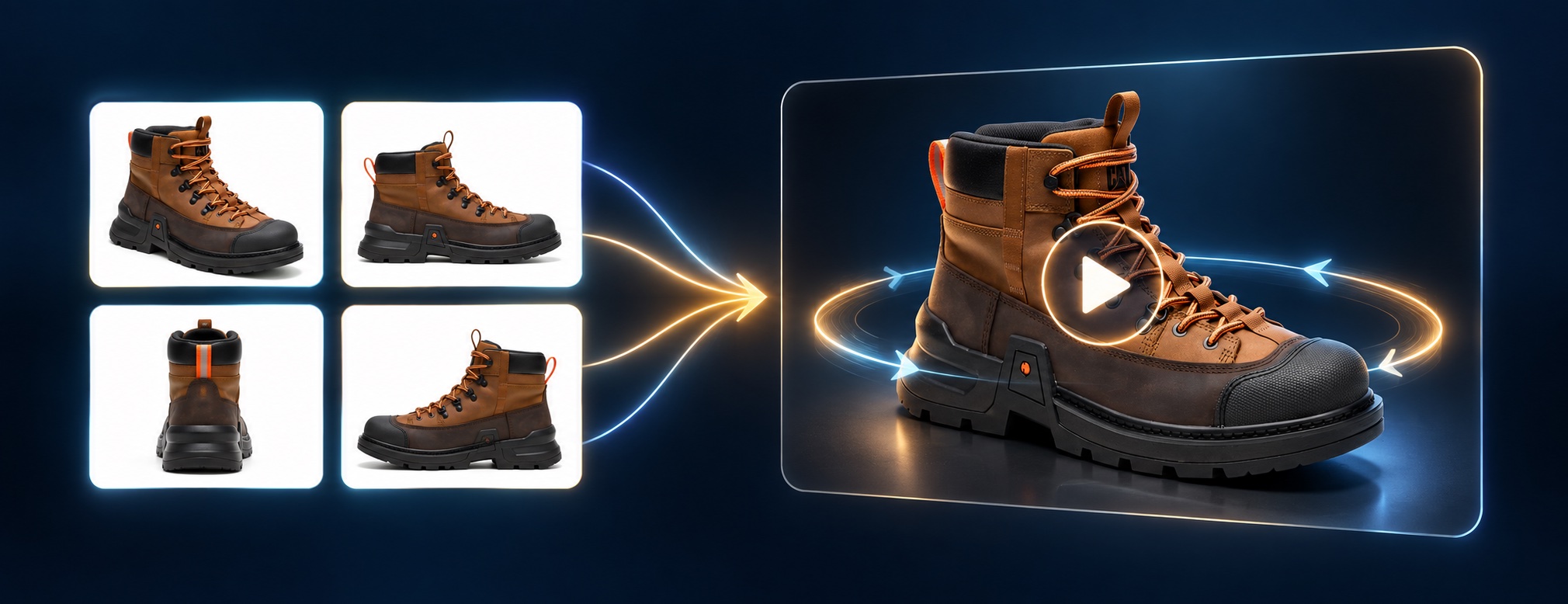
Every shopper looking at a product online wonders what the other side looks like. A 360 product spin answers that. Traditionally it meant a motorised turntable, controlled lighting and dozens of frames per product. Today you can make a 360 product spin from photos you already have, sometimes from a single one. How good the result is depends on how many sides you photograph and how consistently you shoot them. This guide covers both, plus the checks that stop a spin from showing a back that does not exist.
Spin video or interactive viewer?
| Spin video | Interactive viewer | |
|---|---|---|
| What the shopper does | Watches the product turn | Drags to turn it |
| Photos needed | One to four | Many frames from evenly spaced angles |
| Equipment | A camera or phone | Usually a turntable and a fixed rig |
| Where it works | Anywhere a video plays | Only where the viewer is supported |
For most catalogs, the spin video is the practical choice: far fewer photos, no special equipment, and it works on product pages, marketplace listings that accept video, and social media.
How many photos do you need?
| Photos | What to expect | Good for |
|---|---|---|
| Front only | The far side is inferred | Simple, symmetrical products |
| Front and back | The two most important sides are real | Products with details on the back |
| Front, right, back, left | The whole turn is based on real photos | Anything where accuracy matters |
Each side you add makes that part of the spin truer to the real product. For products where the back matters to the buyer, such as a label, zip, ports or a closure, always photograph it.
A four-photo shoot without a turntable
- Set up once. Plain background, camera on a tripod or a stable surface, light from the same direction throughout.
- Mark the spot. Put a small piece of tape on the surface at the product's center, so it goes back to the same place after each turn.
- Shoot the front.
- Turn the product a quarter. Move the product, not the camera, and shoot the right side.
- Repeat for the back and the left side.
Three things decide whether the spin is smooth:
- The same camera height for every side, so the product does not jump up or down as it turns.
- The same light for every photo, so the color stays constant all the way around.
- The product centered in each frame, with some space around it.
Remove the background first
A spin looks cleanest when the product is on its own. Removing the background from all four photos with the same settings gives every side the same background and the same position in the frame. See how to remove the background from multiple images for the batch approach.
Checking the far side
Watch the whole turn, slowly, and look hardest at the sides you did not photograph. Three signs something was invented:
- A label, logo or detail that does not exist on the real product.
- A color or material that changes as the product turns.
- A shape that looks symmetrical when the real product is not.
If you see any of these, photograph that side and make the spin again. A spin that shows the wrong back is worse than no spin.
Format and length by channel
| Channel | Format | Length |
|---|---|---|
| Product page | Square or portrait 3:4 | 5 seconds |
| Marketplace video slot | Square or portrait | Check the marketplace's limits |
| Stories and short-form | Vertical 9:16 | 5 to 10 seconds |
| Website hero or landing page | Wide 16:9 | 10 seconds, for a slower turn |
Five seconds is enough for most product pages. Ten seconds gives a slower, calmer turn that suits premium products.
Using the spin on marketplaces
Wherever a marketplace accepts product videos, the spin can go into the listing's video slot as an MP4. Each marketplace sets its own rules for video length, size and format, so check them before uploading. The main image usually still has to be a photo.
Building the spin in Shoupapp
With Shoupapp's 360° product spin, you add the front photo, plus the right, back and left if you have them, and pick 5 or 10 seconds in portrait 3:4, square, vertical 9:16, landscape 4:3 or wide 16:9. The spin comes back as an MP4, with no turntable and no studio. If a spin fails, its credits are returned automatically. Running the photos through the background remover first, in the same library, gives the neatest result.
Large or awkward products
A sofa or a bicycle will not fit on a table, but the same principles apply at a larger scale. Walk around the product instead of turning it, at the same distance and camera height for each side, and mark your four camera positions on the floor. Keep the light even: daylight from a large window or an overcast sky is more consistent than a single lamp.
Lighting on a budget
You do not need studio lights to shoot a consistent spin. Two practical setups:
- Window light: the product near a large window, with a white card or sheet of paper on the opposite side to soften the shadows. Shoot all four sides within a few minutes, before the light changes.
- Two identical lamps: one at each side, at the same height and distance, pointed through something translucent, such as a thin white fabric.
What matters is not how bright the light is but that it does not change between the four photos.
Products with parts that open
For products with a lid, a zip or a folding part, decide before shooting whether the spin shows them open or closed, and keep it the same in every photo. A lid that is open in one photo and closed in the next cannot turn smoothly. If both states matter, make two spins.
360 spin questions
Can one photo really make a 360 spin?
Yes, but the far side is inferred. It works best for simple, symmetrical products; add real sides for anything else.
Is it an interactive viewer?
No. It is a video of the product turning, which plays anywhere video does.
Which products benefit most?
The ones that get questions about the back or the sides: bags, shoes, electronics with ports, packaging with information on the back.
For a single-shot clip with camera movement rather than a full turn, see how to make a product video from photos.