 Shoupapp
Bulk product videos are short clips made for many catalog products in one run, each from a photo you already have. Instead of filming every item, you set up the steps once and let them run over a whole set of photos, every new upload or a weekly schedule.
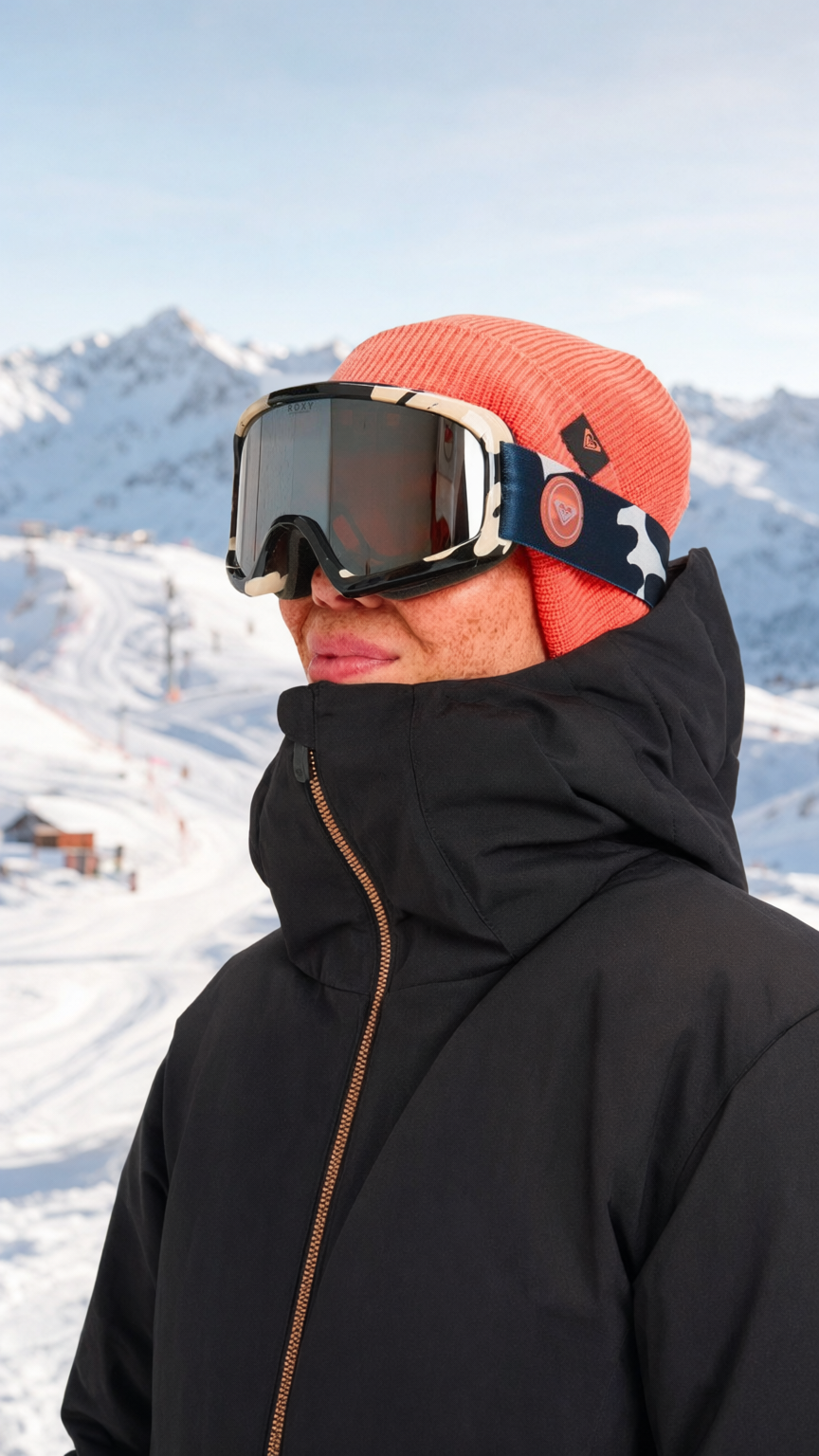
This guide answers the questions merchants ask before they try it. The example comes from one such run: a coral beanie, goggles and a black winter jacket photographed on white, rebuilt as a mountain scene and turned into a ten second video.

What are bulk product videos?
Short answer: Videos made for a set of products with the same steps and settings, so every product gets a clip in the same style.
- A cutout on white for marketplaces and the first image on the product page.
- A scene image for social posts, ads and email.
- A vertical video for Reels, Stories, Shorts and the product page.
How does batch video generation work?
Short answer: You build the flow once on the automation canvas: what starts it, which photos it takes and what it makes from each one.
| Step | Node | What it does |
|---|---|---|
| 1. Start | New Upload, Schedule or CSV Import | A new upload, a set day and time, or a product list starts the run |
| 2. Collect | Search Library | Picks up to 1,500 photos from your library |
| 3. Repeat | For Each Image | Runs the next steps once for every photo |
| 4. Make | Social Video, Animate Product or Video | Makes one clip per photo |
| 5. Report | Send Email | Sends one message when the batch is done |
Photos uploaded together are treated as one batch: the run waits until ten minutes pass without a new upload, then starts. The video is always the last step that makes something, and an email can follow it. Every node is explained in photo automation workflow nodes, and the photo side of a batch in batch processing.
Which video type fits which product?
Short answer: Pick the node by where the clip will be shown.
| Node | What it makes | Best for |
|---|---|---|
| Social Video | A new scene built from the photo, then a vertical film of it | Social posts and ads |
| Animate Product | Gentle motion on the photo itself | Product pages and category grids |
| Video | A clip of the photo as it is | Photos already taken in a good setting |
How do you keep the product from changing?
Short answer: Start from the product's own photo, keep its framing, and let the setting change around the product, not the product itself.


- Use the best photo you have. Sharp, large and evenly lit. The detail in the result can only come from the detail in the photo.
- Keep pose and framing. Here the scene kept the angle of the head, the shape of the collar and the line of the zip from the catalog photo.
- Your own lettering is put back. When a scene is generated, the product's logo and lettering are copied back from your photo wherever they can be matched, so the letters are yours and the light is the scene's.
- No prompts to write. Presets describe the scene, so every product in a batch is treated the same way.
What makes an AI product video look realistic?
Short answer: Light that matches the setting, movement a person would really make, and one continuous take.
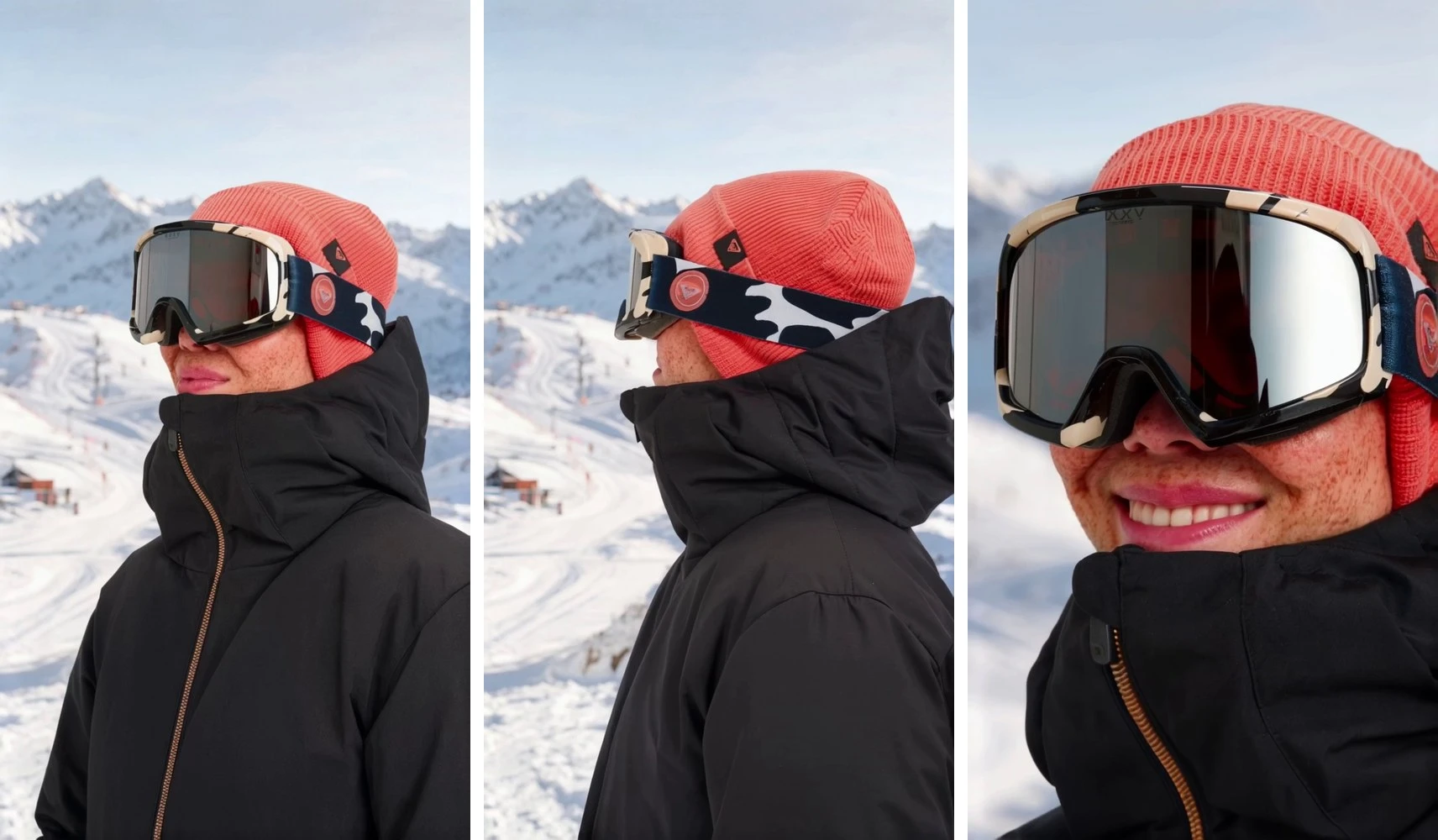
- Light. Bright sun on snow puts highlights on the goggle lens, and the black jacket keeps its folds instead of turning flat.
- Movement. She turns her head toward the valley and back, then smiles at the camera. Small, natural motion reads as filmed.
- One take. Ten seconds without a cut, with the camera moving slowly closer at the end.
- Texture. The knit of the beanie, the freckles and the matte jacket fabric stay readable all the way through.
The same checks for still images are covered in realistic product photos.
Which products should go in the first batch?
Short answer: Start small: products that already sell, products that are new and products whose texture or fit is hard to show in a still.
| Group | Why it goes first |
|---|---|
| Best sellers | They get the most views, so a video is seen most |
| New arrivals | They have no reviews or customer photos yet |
| Seasonal ranges | The selling window is short |
| Knit, padded and draped items | Texture and fit read better in motion |
For a winter range, see ski wear product photos.
How do you check a batch before it goes live?
Short answer: Check a sample first, then the whole set, against the real products.
- Run the flow on ten photos first.
- Watch each clip once at full size and once on a phone.
- Compare colors, closures and prints with the real product.
- Check that the first second shows the whole product.
- Then run the rest of the library on a schedule.
Your originals are never overwritten, and when a video fails, its credits are returned.
Where do bulk product videos work best?
Short answer: Next to the photos, not instead of them.
| Placement | Which file | Note |
|---|---|---|
| Vertical feeds and stories | The video | Vertical format fills the screen |
| Product page | The video, after the photos | The white cutout stays the first image |
| Ads | The scene or the video | Test both on the same product |
| Marketplaces | The cutout as the main image | Many marketplaces ask for a plain background |
Formats and safe zones per platform are in product videos for TikTok and Reels, and how to give a clip a beginning and an end in storytelling product video.
Start with one batch
Pick ten products, build the flow once and check the result before you scale it. The tools behind it are the background remover, AI product photos, the product video tool and batch processing. Costs are on the pricing page and every tool is on the products page. The best test is your own range: see it on your catalog.