 Shoupapp
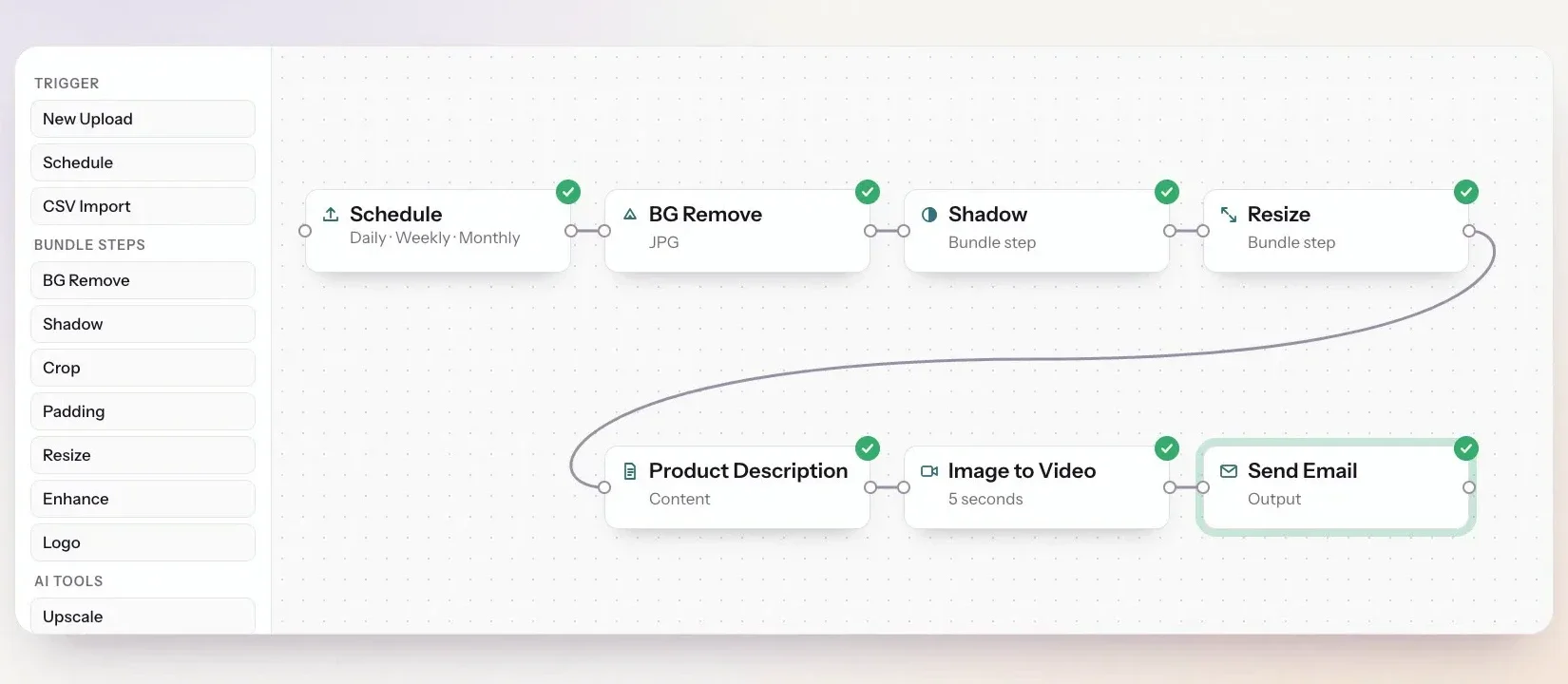
A photo automation workflow is a chain of steps that runs on its own: something starts it, it finds the photos, edits each one and tells you when it is done. On the automation canvas each step is a node. You drag nodes from the left, connect them with a line and fill in their settings on the right. This guide goes through every node in the order you would use it, explains what each one takes in and hands on, and ends with three complete flows you can copy.
This article starts with why a flow is worth building, then works as the reference for building it. For a wider planning guide, see how to automate product photo editing.

Why build a flow instead of editing by hand
Editing a few photos by hand is quick. The trouble starts when photos arrive every week, from several people or for several clients, and someone has to remember the right settings every time. A flow removes that job.
- The work starts without you. Upload a folder and the flow begins on its own 10 minutes after the last photo arrives, or set it to run overnight on a schedule. Nobody has to open the editor and press a button.
- Every photo comes out the same. Margins, shadow, size, file weight and logo are saved once in the flow, so the result does not depend on who uploaded the photo or how busy the team was that day.
- One link for the whole batch. However many photos went in, you get one ZIP behind one protected link in one email, ready to forward to a client or a marketplace team.
- Nothing slips through. The flow owner gets an email after every run, failed images are counted instead of silently missing, and originals are never overwritten.
- The cost is clear before it runs. The canvas shows the estimated credits per image before you save, editing steps are charged together as one group, and a scheduled flow never processes or charges the same photo twice.
- No prompts to write. Every step is a preset with plain settings, so the person who builds the flow does not need to know anything about AI.
When is it not worth it? For a one-off set of a few photos, a single batch edit is faster. A flow pays off when the same work comes back again and again.
Three rules the canvas enforces
- One path. Each node continues to exactly one next node. A node that is not connected to the main line never runs, and the canvas marks it.
- Typed connections. Three things travel down a flow: an image, a video and a download link. Most nodes take an image and hand on an image. Image to Video hands on a video, Create Download Link hands on a link, and only Send Email can follow either of them. If you try a connection that cannot work, such as a video into BG Remove, the canvas refuses it and tells you why.
- Easy editing. Click a line to delete it or to insert a step in the middle. The insert menu only offers the steps that fit between those two nodes.
Triggers: what starts the flow
Every flow starts with exactly one trigger.
New Upload
Starts when photos are uploaded. Uploads are always handled together as one batch, never one photo at a time. The flow starts 10 minutes after the last upload arrives, so a large upload that takes several minutes still becomes one batch. Right after New Upload you add For Each Image (every upload) or Search Library (only the uploads that match, for example a tag). Put a Wait directly after it only if you need a different quiet period.

Schedule
Runs daily, weekly or monthly at the hour and minute you choose, on a chosen weekday or day of the month. A schedule always needs a source node after it to decide which photos to work on. The first run is capped, so a new rule cannot pick up years of old photos and charge for all of them at once.
CSV Import
Starts from a file. The file needs an image_url column and can also carry name, sku, barcode and tags. Any column in your file can later be used as a variable.
Sources: which photos the run works on
Search Library
Finds photos already in your library by name, SKU, barcode or tags (contains, starts with or ends with), by upload date (today, yesterday, the last 7 or 30 days, or a custom range) and by whether a photo has been edited yet. After New Upload it filters the photos you just uploaded, for example only the ones tagged for a client. A scheduled flow never processes the same photo twice, so you do not need to mark finished photos yourself.
Search Online
Looks up product photos on the web from a list of product names or SKUs, with a set number of results per line. It is available after Schedule only, and one run is limited to 50 search lines.
For Each Image
Marks the point where the set of photos becomes one photo at a time. Everything above it works on the whole set; everything below it happens once for each image. Finish the flow with Create Download Link to collect the results again.
Editing steps: one group, one price, a fixed order
BG Remove, Shadow, Crop, Padding, Resize, Enhance, Pixel Repair and Logo are the same operations as batch editing. Placed next to each other on the canvas, they run as one group, are charged as one group and always follow the same internal order, whatever order you drew them in. Why that order matters is explained in batch edit product photos.
| Node | Main settings |
|---|---|
| BG Remove | Removal type, margins, output format, background color, maximum file size |
| Shadow | Style (Contact, Soft, Floating, Studio or Custom), color, opacity |
| Crop / Padding | Pixels per side, padding color |
| Resize | Width, height, mode (fit, crop or stretch) |
| Enhance | Strength |
| Pixel Repair | Cleans noise and blocky pixels and restores fine detail, best after Resize |
| Logo | Logo image, position and size |
Each of these has its own page if you want to see results first: bulk background remover, product shadow generator and AI product photo enhancer.
AI tools
- Upscale brings the image to 2K on the long edge.
- Unblur sharpens soft or slightly blurred photos.
- AI Edit changes the image from a written instruction, at the quality level you choose.
- Image to Video turns the image into a short clip from a prompt and a duration. After it, only Send Email can follow.
- Angle creates a new view of the product from a chosen angle.
- Fashion AI dresses a model in a garment from your library, in the style you pick. See AI virtual try-on.
Content and campaigns
Product Campaign builds a banner from the product photo with a goal, a banner size, a look, a language and optional headline, subheadline and supporting text. Product Description writes product copy in the language, length and tone you set, using the product name, brand, category, key features and target customer you provide. Its output becomes variables that later nodes can use.
Flow control
Condition
Checks a value and lets the image continue only if the check passes. It does not branch: an image that fails simply stops there. You choose what to check, a comparison and a value. The comparisons are contains, does not contain, equals, does not equal, starts with, ends with, is empty, is not empty, greater than and less than. For example, {{ product.tags }} contains apparel sends only clothing to a Fashion AI step.
Update Product Info
Writes the product name, SKU, barcode or tags on the image, replacing what was there, and can use variables. Enter a single hyphen to clear a field. A common use is saving a generated title as the product name with {{ description.title }}.
Wait
Pauses the run for a number of minutes, hours or days, up to seven days. Directly after a trigger it means "wait, then look for the photos".
Create Download Link
Waits for every image in the run, then puts all the results into one ZIP behind one link. The link is protected by a six digit code, works for five days and can be downloaded as often as needed. A batch above 1,500 images or 2 GB is split into a second batch with its own link.
Output: Send Email
Sends the result to the addresses you enter, with your own subject and message. After Create Download Link it sends one email per batch, not one per image, and the email includes the link and its access code. Separately from this node, the owner of a flow receives an email every time a run finishes, whether it succeeded or failed, so a problem never waits to be found days later.
Variables you can type into any text field
Text fields accept variables in double curly brackets, filled in for each image when the flow runs:
| Group | Examples | Available |
|---|---|---|
product | product.name, product.sku, product.tags | Always |
image | image.url, image.width | Always |
description | description.title, description.short, description.alt_text | After Product Description |
campaign | campaign.headline, campaign.cta | After Product Campaign |
video | video.url | After Image to Video |
batch | batch.count, batch.failed, batch.tags, batch.link | In the email after Create Download Link |
date / run | date.today, run.rule | Always |
Product variables are blank in a batch email, because one email covers many products. The editor greys them out there and offers the batch group instead.
Three flows to copy
New stock, ready by the next morning
- New Upload
- For Each Image
- BG Remove, Shadow, Resize, Pixel Repair
- Create Download Link
- Send Email to your team, subject
{{ batch.count }} photos ready
A weekly listing pack
- Schedule: Mondays at 06:00
- Search Library: tag
new - For Each Image
- BG Remove, Resize
- Product Description
- Update Product Info: name
{{ description.title }} - Create Download Link, then Send Email
Clothing only, on a model
- New Upload
- For Each Image
- Condition:
{{ product.tags }}containsapparel - Fashion AI
- Create Download Link, then Send Email
Test before you switch it on
After saving, the test panel under the canvas lets you pick a recent image and run the flow on it straight away. The top bar shows the estimated credits per image before you save, and originals are never overwritten. The product overview is on the bulk image processing page, costs are on the pricing page and every tool is on the products page. The best test is your own photos: see it on your catalog.
Workflow questions
Can one flow branch into two paths?
No. A flow is one line. Use a Condition to let only some images through, or build a second flow for the other group.
Will I get one email per photo?
Not if the flow ends with Create Download Link and then Send Email. That sends one email per batch with one link.
What happens to photos that fail?
They are left out of the ZIP and counted in {{ batch.failed }}, and the flow owner is emailed about the run.