 Shoupapp
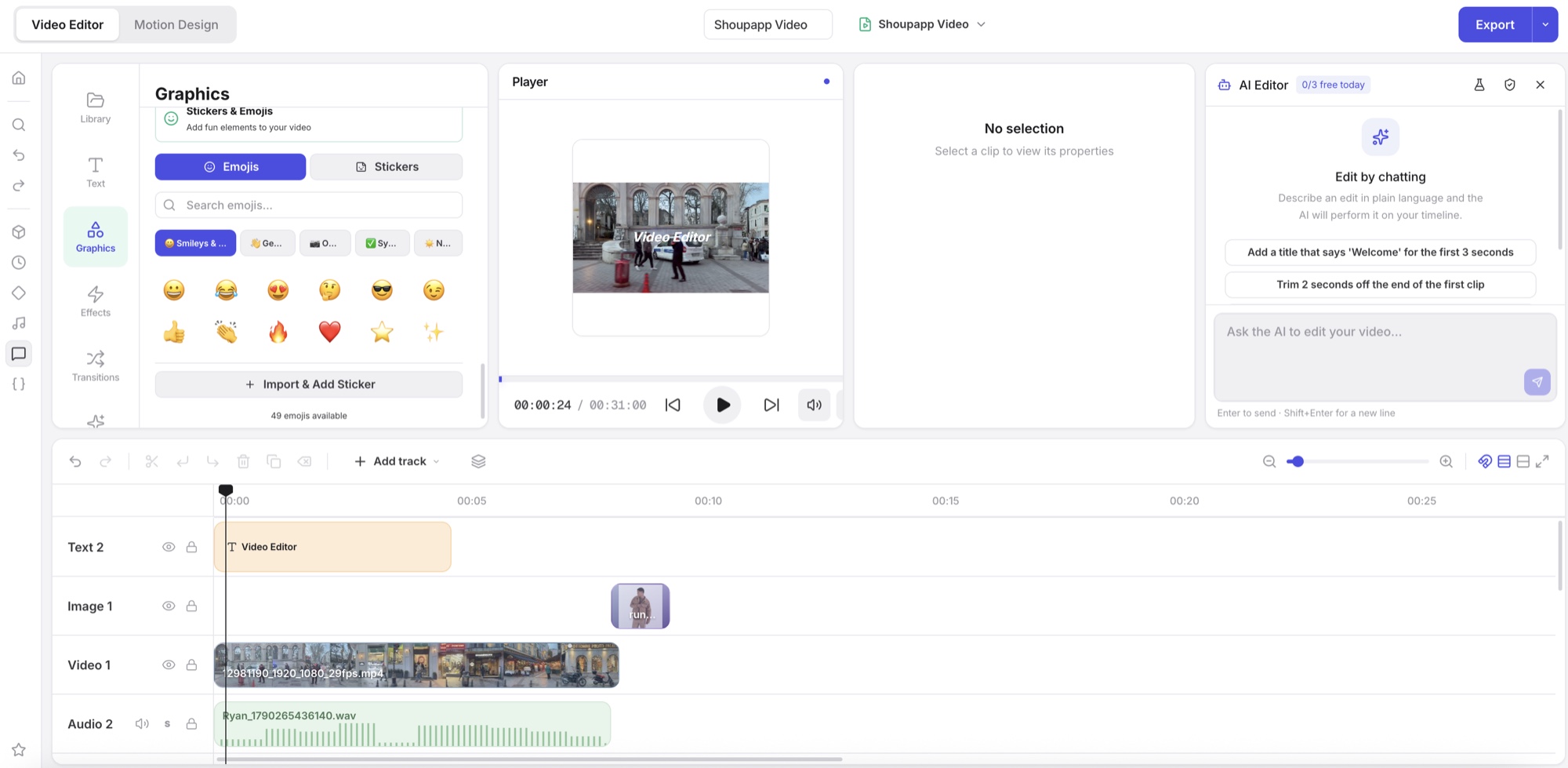
Most advice on how to add captions to product videos assumes someone is speaking. Many product videos have no speech at all, just music. Those need something different: on-screen text that carries the message. This guide covers both cases, the choice between burned-in captions and a caption file, what to proofread, how to style text for vertical video, and how to add a voice-over without recording one.
Captions, subtitles and on-screen text
| Term | What it is | When product videos need it |
|---|---|---|
| Captions | What is said, as text, timed to the speech | Videos with a voice-over or someone speaking |
| Subtitles | Captions translated into another language | Selling in several countries |
| On-screen text | Titles and short lines that carry the message | Music-only videos, ads, key selling points |
Many good product videos use both: captions for the voice, and a short title for the one thing viewers must remember.
Why captions matter
Captions reach two groups at once. The first is people watching with the sound off, which is common on phones in public places and on feeds that start videos muted. The second is people who are deaf or hard of hearing: according to the World Health Organization, over 5% of the world's population, or 430 million people, need rehabilitation for disabling hearing loss. A video that relies on sound leaves both groups out.
Music-only videos: what to put on screen
Generated product videos often have a soundtrack and no voice, so there is nothing to caption. Put the message on screen instead:
- Opening: the product name or the problem it solves.
- Middle: one benefit or detail, timed to the close-up.
- End: the offer or call to action, such as the price or "shop now".
Three short lines are usually enough. More than that and viewers read instead of watching.
Burned-in captions or a caption file?
| Burned in | Separate file | |
|---|---|---|
| What it is | The text is part of the picture | A text file the platform shows over the video |
| Viewers can turn it off | No | Yes |
| Style control | Full | Set by the platform |
| Best for | Social feeds and ads | Websites and platforms that support caption files |
For short social videos and ads, burned-in text is the practical choice: it looks the same everywhere and you control the style.
Proofread names, sizes and prices
Generating captions from speech saves most of the typing, but always read them through. Product names, brand names, sizes, measurements and prices are exactly the words most likely to be misheard, and exactly the ones that must be right. A wrong price in a caption is a customer service problem.
Styling for vertical video
- Large, clear type. Most short videos are watched on a phone.
- High contrast. White text with a dark outline, or text on a semi-transparent box, stays readable over any background.
- One or two lines at a time, a few words each.
- Stay clear of the interface. Keep text away from the bottom, where the platform shows the caption and profile name, and from the right edge, where its buttons sit.
- Do not cover the product. Move the text if the product sits where it would go.
A voice-over without recording one
If a product video has only music, a short spoken explanation can do what text alone cannot. Text-to-speech turns a written script into a voice. Captions can then be generated from that voice, so both come from the same script and always match. Keep the script short: a sentence per shot is plenty.
A typical finishing job
- Open the product clip in the editor and trim the start and end.
- Add the headline and price as titles.
- Place your logo in a corner, away from the platform's buttons.
- Add a voice-over from text, if the video needs one.
- Generate captions and proofread them.
- Export square, vertical and wide versions from the same project.
Finishing in Shoupapp's video editor
Shoupapp's video editor runs in the browser with nothing to install. Captions can be generated from the speech in your video and then edited, and a voice-over can be made from text; on paid plans both are included at no credit cost. The multi-track timeline handles titles, your logo, music, keyframes, color grading, effects and transitions. Export is rendered in your browser and is free on every account.
Start from clips made in Shoupapp, such as a product video or a social media film, or from your own footage. The clip you started from stays in your library, untouched, and projects are saved to your account, so you can come back to a cut later.
Timing and reading speed
Captions that disappear before they are read are almost as bad as none. Keep each caption on screen long enough to read comfortably, split long sentences at natural pauses, and avoid breaking a product name across two captions. On a short product video, fewer, longer-lasting captions work better than many quick ones.
Captions in several languages
If you sell in several countries, the same video can serve all of them with translated text. Keep every language's text in separate layers or separate caption files, check that translated lines still fit on screen, since some languages run longer, and have prices and measurements shown in each market's own format.
An accessibility checklist
- Every spoken word is captioned.
- Important sounds that carry meaning are described.
- Text has strong contrast against the background.
- No essential information is given only by sound.
- Captions are proofread for names, numbers and prices.
Caption questions
Can captions be generated automatically?
Yes, from the speech in the video. Always proofread them before exporting.
Does a voice-over cost credits?
No. On paid plans, text-to-speech and captions are included at no credit cost.
Should captions be translated?
If you sell in several countries, yes. Keep the text in separate layers so each version is easy to swap.
Take the product video that already gets the most views, add on-screen text or captions, and post the new version. It is the quickest way to see what text does for your own audience.