 Shoupapp
Product color variants usually mean one photoshoot per colorway. If your catalog has a product in five colors, that is five sets of samples, five setups and five rounds of editing. With Generate Mockup you start from the one photo you already have, choose the colors you want and get one realistic lifestyle image for each, with the shape, print and logo of the product kept as photographed.
When product color variants pay off
Color is often the last thing a shopper decides, and a listing that shows every option answers that question on the page. Variant images are most useful in four places:
- Collection pages. Every colorway in the same setting and the same light, so the grid looks like one shoot.
- Social posts and ads. Show a colorway the moment it goes on sale, then keep one image per color for later campaigns.
- A preview before you photograph. See how a color reads in a real setting before you plan a shoot for it.
- Seasonal refreshes. Bring warm colors forward in autumn and light ones in spring, as in our seasonal product photos guide.
Three products, one photo each
Each example below started from a single supplier photo. Nothing was reshot.
Sneakers: a new colorway in a print studio
The source was a plain cutout of leopard print sneakers. The result keeps the print, the laces and the white sole, and puts the shoes in red on a printing table. The setting fits the product: a pattern next to other patterns.


Water bottle: same logo, new color, outdoors
A navy bottle with a bamboo cap became a red bottle on a picnic table. The cap, the handle and the logo stay as they were, which is what makes the variant believable. Our post on keeping your logo intact explains why that matters.


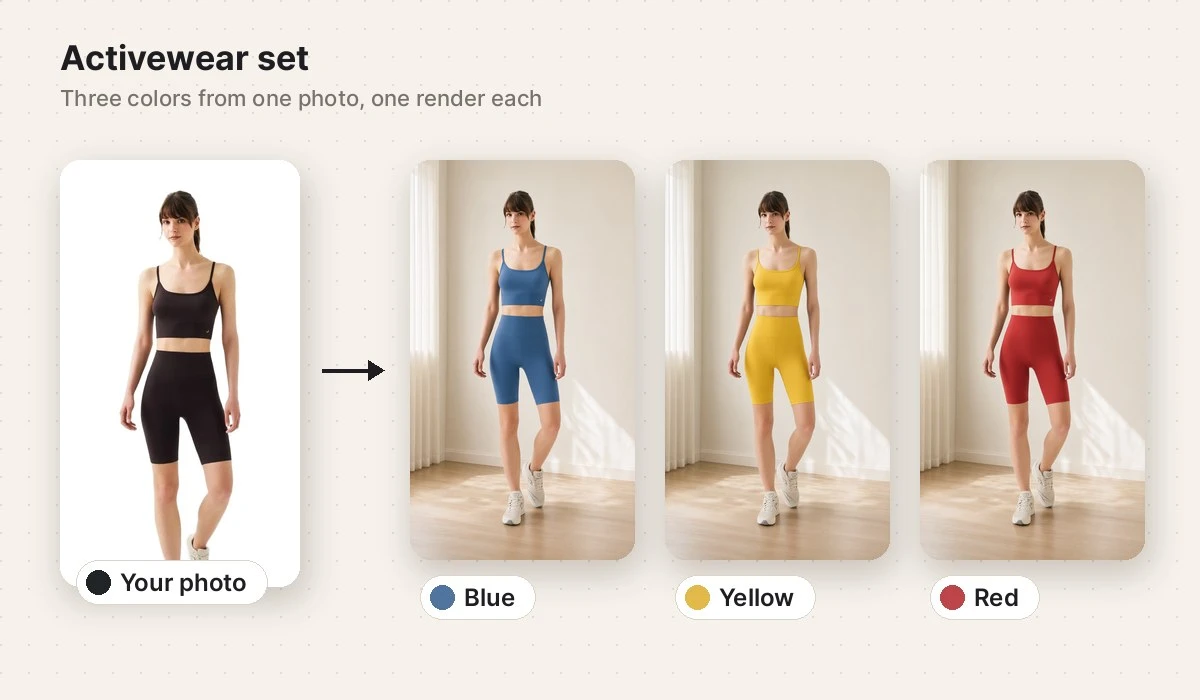
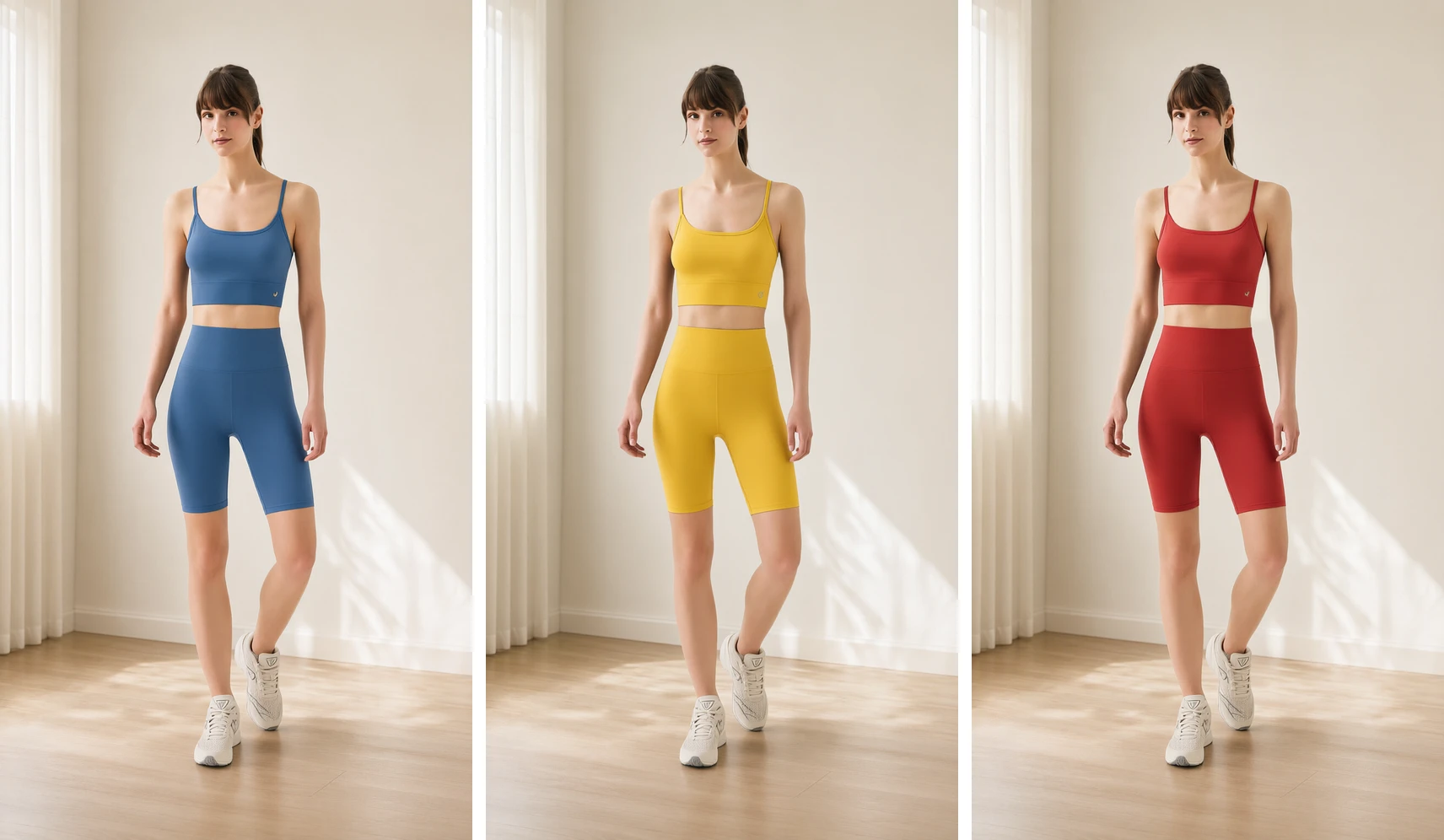
Activewear set: three colors from a black set
A black two-piece set on a model became blue, yellow and red in a bright studio. Fit, pose and seams follow the source photo, and only the garment changes color, not the model or the room.

How to make color variants in four steps
Open Generate Mockup from the sidebar. You do not need to write a prompt.
- Choose a product photo: upload one or pick it from your library.
- Under Where should the product appear? describe a scene, or leave it blank and a suitable everyday setting is chosen for you. Tick Enhance prompt if you want your short note turned into a fuller brief.
- Under Colour variants pick up to ten colors. Pick none to keep the photographed color.
- Press Generate mockups. You can leave the page; the images arrive in your library, named after the product and the color.
Mockup or a real photo of each color?
A mockup shows the product in a new color convincingly. Where the exact shade is part of the purchase, a photo of the real item is still the safer choice. A simple way to split the work:
| Where the image goes | Color mockup | Photo of the real item |
|---|---|---|
| Social posts and ads | A good fit | Optional |
| Collection and category pages | A good fit | Optional |
| Color you have not produced yet | A good fit as a preview | Not possible yet |
| Product page swatch where the exact shade matters | Use alongside | Recommended |
Run it on every new upload
Generate Mockup is also a node in automation workflows. A flow such as Every upload, then Background, then Generate Mockup gives each new product its colors without anyone opening the page. Pick the colors once in the node and they apply to every photo. It is the last step of its flow; see how it fits with a banner and a video in our product content automation example.
Give each color its own content
Once you have the variants, each one can travel further: turn it into a social media video, place it in a new lifestyle scene, or remove the background for a white background listing. Plans and credit costs are on the pricing page.
Questions about color variants
How many colors can I make at once?
Up to ten from a palette of black, white, gray, beige, brown, red, orange, yellow, green and blue. Each color is one image and is charged as one. If a single color fails, that color is refunded on its own.
Do the logo and print stay the same?
The color change is applied to the product's main color, and the logo, lettering, trim, shape and material are kept. As with any generated image, look over each result before you publish it.
Can I keep the original color and only change the scene?
Yes. Choose no color and you get one image in the photographed color in the scene you describe.
Do I need to write a prompt?
No. Leave the scene blank and a suitable everyday setting is chosen. Wearable items are shown worn, furniture is placed in a room and other products are shown in use.