 Shoupapp
Product content automation means the photo a supplier sends turns into everything a launch needs without someone rebuilding it by hand: a clean catalog image, a banner, every colorway and a video for social media. Here is one real run on Shoupapp, from a small activewear photo to a finished clip, with each step marked as something you can run automatically or something you finish yourself.
Narration: “This is what a supplier usually sends. Small in the frame, flat light, soft detail. One batch cleans it, sharpens it, and rebuilds the fine detail. Up to fifteen hundred photos in a single run. That clean photo turns into a campaign banner, with the headline already written. Need every colorway? Tick the colors you sell. No reshoot. Then it moves. A vertical clip, with sound, ready for Reels and TikTok. Switch it on as a flow, and every new upload goes through every step on its own.”
Why the supplier photo holds a launch back
One product rarely needs one image. It needs a product page photo, a listing on a plain background, a feed image for shopping ads, a banner for the homepage and a vertical clip for social media. A supplier file is usually built for none of them. Google, for example, recommends product images of 1500 × 1500 pixels or larger and asks for no watermarks or promotional text on the main image; from 31 January 2027 it stops showing product images smaller than 500 × 500 pixels (Google Merchant Center image requirements).
So the real cost of a weak photo is not one edit. It is the same product rebuilt five times by different people, each in a different tool. Product content automation removes the rebuilding: the photo is fixed once, and every other asset starts from that fixed version.
What can you automate with Shoupapp?
Almost all of it. Every step below exists as a page you can use by hand and as a node in an automation flow, except the final edit, which stays yours.
| Step | By hand | In an automation flow | What you get |
|---|---|---|---|
| Clean, upscale, repair pixels | Batch Edit | Background, Upscale, Pixel repair | A catalog-ready photo |
| Campaign banner | Product Campaign | Campaign | A banner with headline and button |
| Color variants | Generate Mockup | Generate Mockup | One image per color you choose |
| Scene image | Social Image | Social Image | The product in a new setting |
| Social video | Social Video | Social Video | A vertical clip with sound |
| Product description | Product Description | Description | Listing copy from the photo |
| Voice-over and final cut | Video Editor | Not automated | Your finished edit |
Step 1: the supplier photo
It starts with the photo you already have. This one is typical of a supplier file: the model is small in the frame, the light is flat and the detail is soft.

Step 2: clean, upscale and repair in one batch
In Batch Edit the background is cleaned, the photo is enhanced and Pixel Repair rebuilds fine detail, in one run for up to 1,500 photos. The comparison below is the same crop of both files.

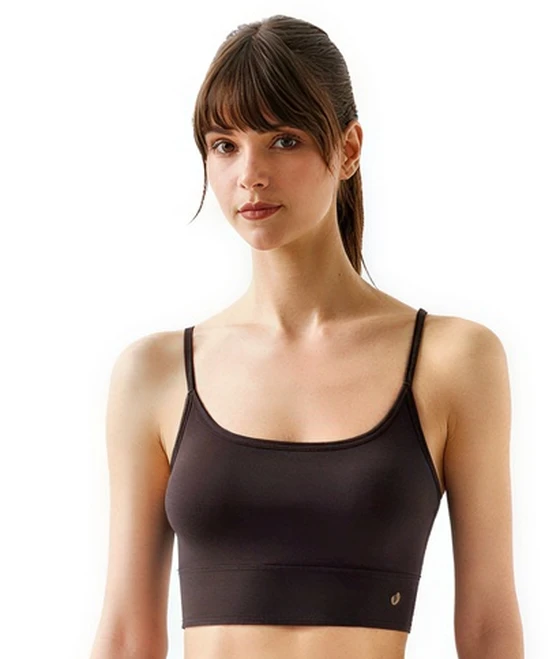
This is the image that goes first on the product page and to every marketplace. Everything after this step starts from it, which is why it comes first.
Step 3: a campaign banner, copy included
The clean photo goes into the banner maker. Pick a goal and a format, and the scene is built around the product with a headline, a line of copy and a button.

The text is set as real type on top of the scene, so the words are exactly the ones you approve. More on briefs and carousels in hero banner and carousel slides.
Step 4: every color variant
Generate Mockup takes the same photo and makes one image per color you tick, up to ten from its palette. Here blue, yellow and red were chosen.
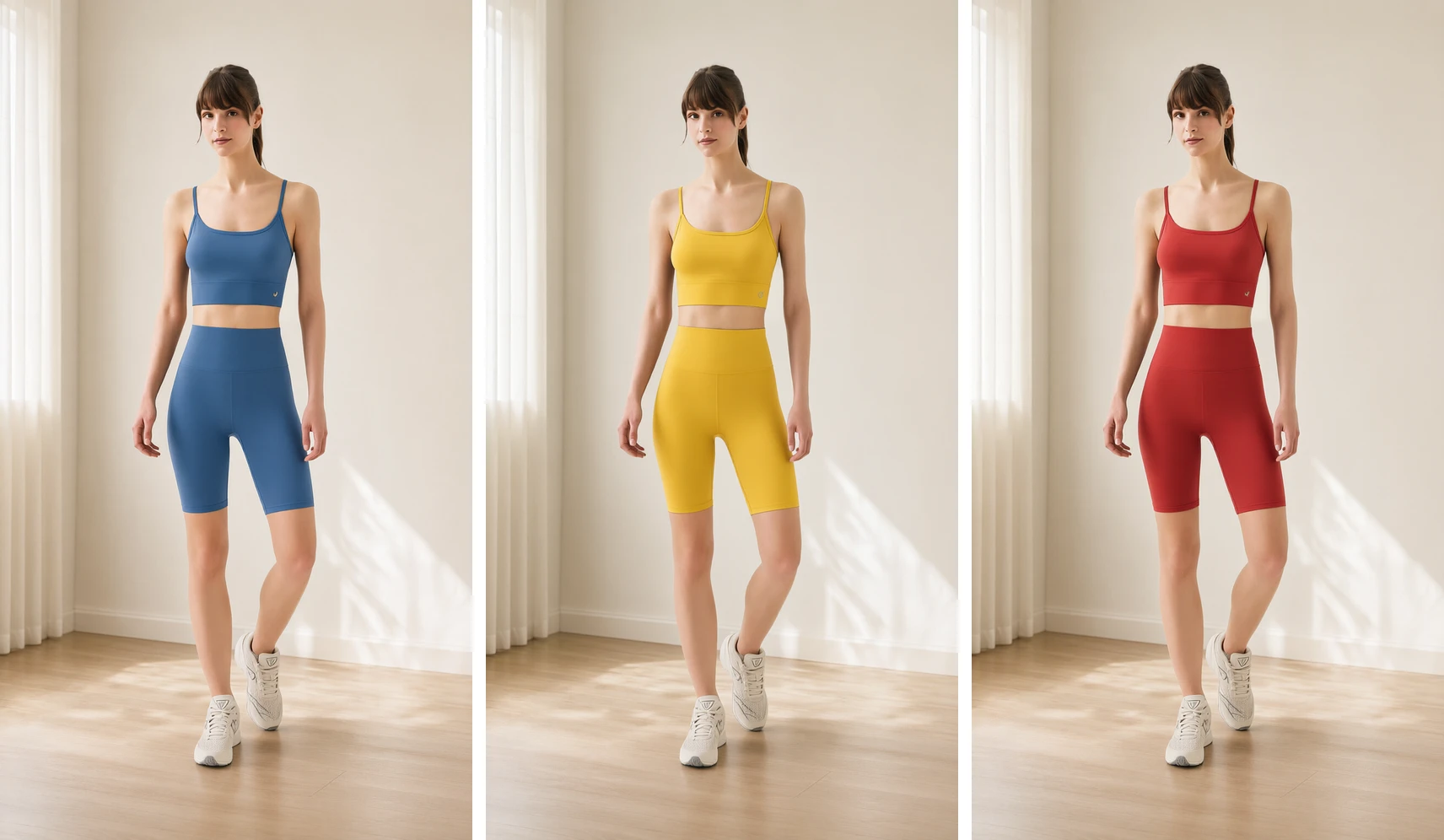
Each variant keeps the cut, the trim and the setting, and only the main color changes. Choose only colors you actually sell, so the photo matches what the customer receives.
Step 5: motion, with a video or a new background
From the same set you can make a social video, or keep it still and only change the setting with AI product photos.
The clip is vertical and comes with sound, ready for Reels, TikTok and Shorts. How to describe natural sound is covered in image to video with sound.
Step 6: finish it yourself in the editors
The last step is the one you keep. In the video editor you can:
- Record a voice-over with the built-in recorder and your microphone.
- Generate a voice from text, if you do not want to record one.
- Add captions and music and trim the clip for each platform.
- Fix a still in the photo editor before it goes into the video.
Which asset each channel needs
Use this table to see which step covers which channel before you build a flow. Most catalogs need the first two rows for every product and the rest for the products they promote.
| Channel | What it needs | Step that makes it |
|---|---|---|
| Product page | A clean, sharp photo with the same margins as the rest of the catalog | Step 2: Batch Edit |
| Marketplaces and shopping ads | The product on a plain background, no text on the image | Step 2: background remover |
| Homepage and paid ads | A wide banner with your headline and a button | Step 3: banner maker |
| Color selector | One image per color you actually sell | Step 4: Generate Mockup |
| Reels, TikTok and Shorts | A vertical clip with sound | Step 5: social video |
| Listing text | A description written from the photo | Product Description |
Three flows you can switch on
Steps become a flow on the automation canvas. Three flows that cover these steps:
| Flow | Nodes | Result |
|---|---|---|
| Catalog prep | Every upload, Background, Pixel repair, Upscale, Download link, Email | Clean photos for every new upload |
| Colorways | Every upload, Background, Generate Mockup | Every chosen color for each new product |
| Weekly social | Schedule, Library, For each, Social Video, Email | A clip for each selected product, once a week |
Two rules keep these flows sound. Upscale goes after any step that redraws the picture, because those steps work at their own size. Video and Generate Mockup end a flow, so only an email can follow a video. Every node is explained in photo automation workflow nodes.
Five mistakes that cost a relaunch
- Showing colors you do not stock. A variant image is a promise. Generate only the colors that are in your inventory.
- Upscaling too early. Steps that redraw the picture work at their own size, so Upscale belongs after them, never before.
- Putting the headline into the product photo. Keep text on banners. The main product image should stay clean for marketplaces and shopping feeds.
- Overwriting the supplier file. Keep the original as your reference. Shoupapp writes every result as a new file and never overwrites the original.
- Automating before checking one product. Run one product by hand first. A flow repeats whatever you set up, good or bad.
What to check before you switch a flow on
- Run one product through every step by hand.
- Compare the before and after at full size, especially hair, seams and small print.
- Check each color variant against a real sample.
- Watch the social clip with the sound on, the way your customers will.
- Decide who receives the email and the download link when a run finishes.
- Write alt text that names the product, the color and the setting, as Google recommends in its image best practices.
When the one product looks right, the same settings run on every new upload or on a schedule, in the background, while your team works on something else. For a deeper look at the order of operations, read batch edit product photos in the right order.
Start with one product
Pick one product with a weak supplier photo and run the steps once: Batch Edit, the banner maker, Generate Mockup and a social video. Then switch on the flow that fits. Your originals are never overwritten. Costs are on the pricing page and every tool is on the products page. See it on your catalog.
Product content automation questions
What is product content automation?
Turning a product photo into catalog images, banners, variants and videos with steps that run on their own, instead of rebuilding each asset by hand.
Can I make color variants without new photos?
Yes. Generate Mockup makes one image per color you choose from the same photo. Use only colors you sell.
Which step should I keep manual?
The final edit: the voice-over, captions and the last cut in the video editor.
Does automation replace a photoshoot?
Not for a new hero campaign. It covers catalog volume: cleanup, variants, banners and short clips from photos you already have.
Will the color variants match the real product?
Each variant keeps the cut and the setting and changes the main color. Check every color against a sample before you publish it.
Can an agency run this for its clients?
Yes. Agencies and freelancers run the same flows for several brands and sell the result as a service.